
Magic Eraser — Remove Unwanted Objects From Photos
Magic Eraser on AI Object Remover removes a brushed object from a photo and fills its outline with nearby colors and textures while keeping the original framing.


Start with your photo
Choose a photo, then paint over the part you want to change.
or drop an image here
JPG, PNG or WebP · up to 10 MBUse this online magic eraser to clear a passerby from a travel photo or a cable from a product shot. Brush the distraction, compare the repaired area with the original and download a PNG. Preparing the selection is free. A new AI edit costs 1–2 credits. Eligible accounts can claim 1 at daily check-in. Downloading the finished photo uses no extra credits.
Can I use Magic Eraser online for free?
You can try the brush, inspect the photo examples and download a finished edit for free. To erase something in your own photo, sign in. If you qualify for daily check-in, use the credit button at the top of the page to claim your free allowance (1 per UTC day). If you have no credits to use, the smallest pack that covers a new edit is $4.99 for 10 credits.
| Action | Credits | Price in USD |
|---|---|---|
| Prepare a photo or try a sample | 0 | $0.00 |
| New Standard photo edit | 1 | $0.50 |
| New Precision photo edit | 2 | $1.00 |
| New Pro photo edit | 2 | $1.00 |
| Download a finished PNG | 0 | $0.00 |
| Starter credit pack | 10 | $4.99 |
Per-edit figures use the Starter pack ($4.99 for 10 credits) and are rounded to the nearest cent. Each new attempt uses the selected mode’s credits. Confirmed technical failures return the credits. Available modes are shown in the editor.
See all credit packsWhat can a magic eraser remove from a photo?
A photo magic eraser can replace a passerby on a path, a loose cable on a counter or lettering across a window. Brush just beyond the outline so the fill can meet the surrounding surface. Leave the parts you want to keep outside the selection.
For a product shot, follow the cable around the item rather than brushing the whole table. For a group photo, leave space between the selection and the face you want to keep. Check reflections and repeating tile lines in the finished PNG.
How to erase an object from a photo
Upload a photo, brush over the object and run Magic Eraser. Compare the repaired area with the original, then download the finished photo as a PNG.
Open the original photo
Choose a JPG, PNG or WebP up to 10 MB and 20 megapixels. Use a copy with the framing you want in the finished photo.
Brush and check the fill
Paint the object and its edges. Pick an available editing mode, check its credit cost and run the edit. Compare the original with the repaired area before saving.
Compare and download the PNG
Check lines and textures where the object used to be. When the repair looks right, select Download to save the PNG at the working image size.
Magic Eraser photo examples
Drag the divider in each photo to compare the original on the left with the edited image on the right. Look at the repaired surface and the objects immediately around it.
 BeforeAfter

Clear the kettle and cable
Compare the tiles where the kettle stood. The cup and green bottle stay in place.
 BeforeAfter

Erase lettering from a café window
The large WEEKEND MARKET letters disappear from the glass. The café sign and the small table number are still visible.
 BeforeAfter
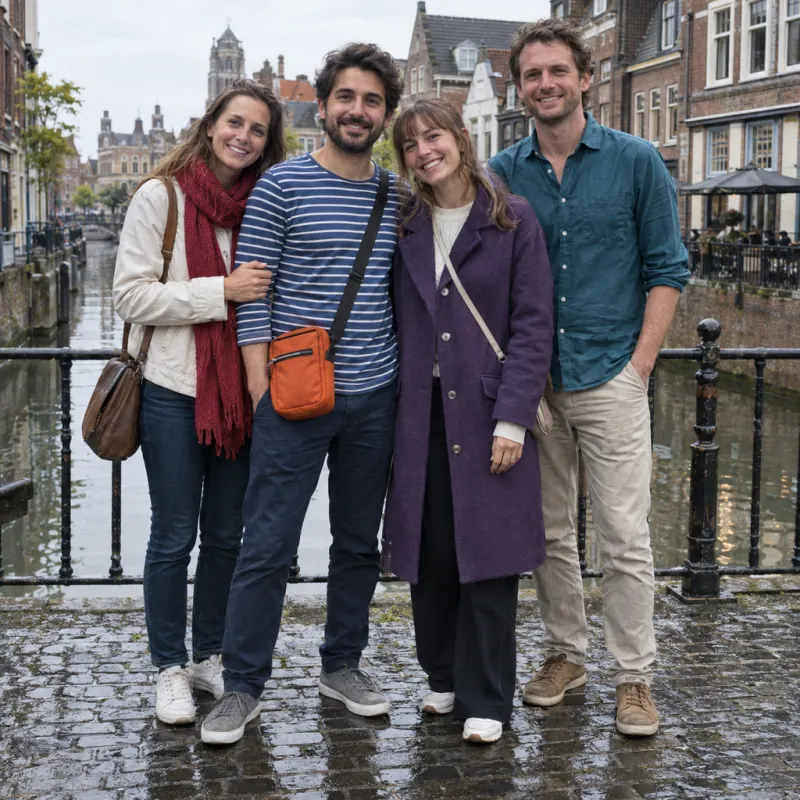
Keep the friends on the outside
The two middle figures disappear from this canal-side group shot. The people at either edge stay in the frame.
What Magic Eraser can’t do
Magic Eraser fills the area you select using details from the surrounding photo. It cannot recover the original pixels hidden behind a person or lettering. Fine text, overlapping faces and repeated tile patterns can be difficult to reconstruct.
The finished PNG keeps the photo’s proportions at a working size of up to 1024 pixels on the longest edge. Zoom in on hair, small type and repeating lines to inspect the repair.
Magic Eraser FAQ
The photo eraser works in a mobile browser, and finished PNGs can be saved to your device.
Can I use the photo eraser on my phone without an app?
Yes. Open the page in your phone’s browser, select a photo and paint with your finger. Zoom in for fine edges, then use Download to save the finished PNG.
Is this the 消しゴムマジック feature in Google Photos?
消しゴムマジック is the Japanese name for Google Photos’ Magic Eraser. This editor runs on AI Object Remover and opens photos you choose from your device. A Google Photos library or Pixel phone is optional.
How long can I download my edited photo?
Your account’s private working images and results each expire after 30 days. Download the finished PNG before its result expires if you want to keep a copy.
How should I brush around hair or thin edges?
Zoom in and reduce the brush size where strands cross the object. Undo strokes that touch the face or hair you want to keep. After the edit, compare that edge with the original before saving.