People

Remove People from Photo

Remove people from photo backgrounds with a few brush strokes. Select a tourist, passerby or photobomber, let AI fill the space, then compare the result before downloading.

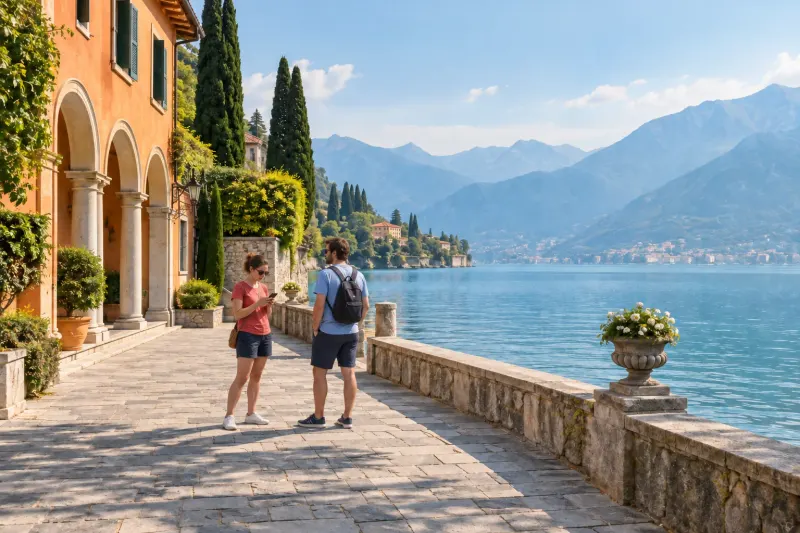
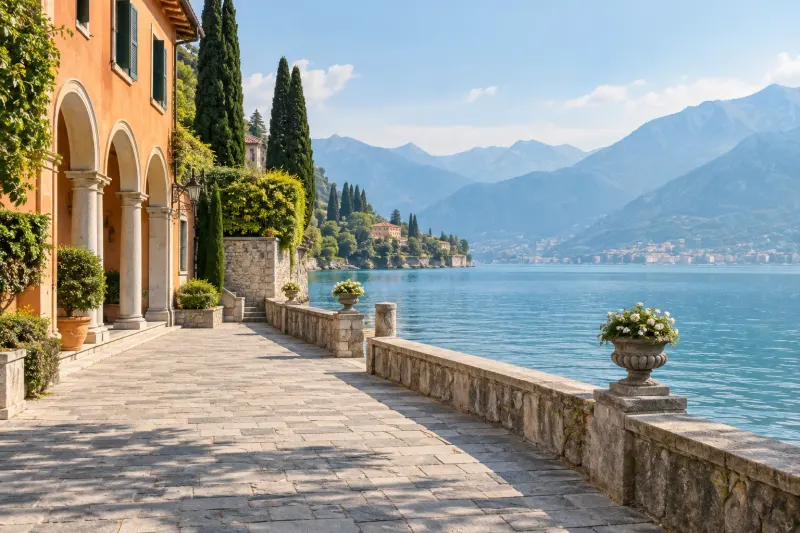
Italian lakeside promenade, shown with and without two tourists.OriginalEdited
AI example · drag to compare

Start with a photo.

or drop an image here

JPG, PNG or WebP · up to 10 MB
Try an example
You choose what disappearsYour photos stay out of public galleriesSee the difference
WHAT WOULD YOU REMOVE?

Remove people from photo backgrounds, keep the moment

A person remover gives you a way to clean up a favorite shot without cropping away the view. Mark the figures you want removed. The AI uses the surrounding scene to reconstruct what they were covering, including parts of people you want to keep. Compare the full result to check those people and their appearance.

Italian lakeside promenade, shown with and without two tourists.BeforeAfter
AI-generated scene illustration. Your results will vary.
01 / People

Keep the view you came for

Select the tourists behind your subject, including their feet and shadows. The comparison shows an AI-generated illustration of the idea; your own result depends on the photo, selection and background.

  • Travel portraits
  • Beach photos
  • Street scenes
Clean up my photo
WHEN TO USE IT

Keep the shot. Fix the distraction.

01

Travel photos without the crowd

Remove people from photo backgrounds at beaches, viewpoints or city landmarks. Small, separate figures against open pavement, sky or water are easier starting points than a dense crowd covering most of the scene.

02

Portraits without photobombers

Clear a passerby behind your subject. Zoom in where their outlines meet and reduce the brush size around hair and clothing. Keep your subject outside the selection so the edit targets the distraction you actually want gone.

03

One person out of a group photo

Select one unwanted person while leaving everyone else unmarked. Check shared shoulders, linked arms and overlapping legs carefully. If someone covers another person's body, AI must invent the hidden area; it cannot recover the missing detail.

UPLOAD. BRUSH. REMOVE.

How to remove people from photos

01

Choose your photo

To remove people from photo backgrounds, upload a JPG, PNG or WebP up to 10 MB. Pick the clearest available version and keep your original file. You can prepare the image and selection before signing in. Large images are resized to a working image with a longest edge of 1024 px.

02

Brush over the unwanted person

Paint over the whole figure, including loose hair, shoes and any shadow you want removed. Use a smaller brush near the subject you are keeping. Erase accidental selection marks or undo a stroke before continuing. You can select several separate people for one edit when their outlines are clear.

03

Generate, compare and download

Sign in and choose Standard for 1 credit or Precision for 2 credits. Run the edit to remove the people you marked. Compare the whole image, including retained faces, clothing and overlapping bodies, before downloading the PNG. Another generation uses credits again.

Italian lakeside promenade, shown with and without two tourists.
Your photo. Your focus.AI-generated scene illustration. Your results will vary.
THE DETAILS THAT MATTER

How to remove people from pictures cleanly

01

Protect the person you want to keep

When you remove people from photo backgrounds, select carefully. Zoom in around your subject's hair, hands and clothing. Leave those pixels unselected, and erase any brush marks that cross their outline. Inspect the working image before starting a paid generation.

02

Follow shadows and reflections

A leftover shadow can reveal where someone was standing. Look at the ground, nearby glass and water before you finish brushing. Include only the unwanted person's reflection or shadow, keeping the scene's other lighting intact. Leave surrounding texture available to guide the fill.

03

Check edges at two zoom levels

After you remove people from photo scenes, inspect both the full composition and the repaired area close up. Check railings, horizon lines, paving and repeated patterns. If you see a ghost outline or smear, adjust the selection for a new edit. Dense crowds and overlapping faces may remain difficult.

Before you start

PNG output, up to 1024 px

You can remove people from photo backgrounds and download a PNG without an added watermark. The working image has a maximum longest edge of 1024 px. This is not a full-resolution export of a larger original, so check the size for your intended use.

Remove person from photo online free

Preparing your photo and selection is free. Generating an edit requires sign-in and sufficient credits; available free credits depend on your account. Standard uses 1 credit and Precision uses 2. Technical failures refund credits, and downloading a completed result costs nothing extra.

Pricing

Private storage for 30 days

Working photos and results stay private for 30 days, and you can delete them sooner. Editing sends images to an external AI service. Download the result you want to keep before it expires, and use images you have permission to edit.

Privacy policy
GOOD QUESTIONS

People removal questions, answered

Can I remove people from photo backgrounds in one edit?

Yes. Brush over each unwanted person before generating. A single run can include several separate selections. For crowded scenes, smaller edits may give you more control, but every new run uses credits. Start with people whose outlines are clearly separated from your subject.

Will the person remover change my main subject?

Standard blends the repair into your selected area. Precision reconstructs the selected people and overlapping edges as a complete photo, so nearby details can change. Your original may first be resized to the working resolution. Keep the people you want unselected and inspect faces, clothing and overlapping bodies before accepting the result.

Can I use this tool on my phone?

Yes. Open this page in a modern mobile browser to remove people from photo backgrounds without installing another app. Choose a supported photo, zoom in and brush with touch. Check the selection before generating, then download your completed PNG to your device.

Can I remove a person from a photo free?

If you want to remove people from photos free, check your account for available free credits. Local preparation is free, but AI generation requires sign-in and enough credits for your chosen mode. Free allowances are not unlimited, and more credits are needed when your balance is insufficient.

Why does the repaired background look blurry?

AI fills a gap using nearby visual context. Large selections, repeated patterns and hidden body parts give it less reliable information. Check for missed edges or shadows, then refine your selection. Precision is another available mode, but neither mode guarantees a perfect reconstruction.

Do I need Photoshop or editing experience?

No. You can remove people from photo backgrounds using the browser editor's brush, eraser and undo controls. There are no layers to set up or clone sources to choose. Try a simple background first.

Can AI remove a person from a photo and rebuild the background?

The AI uses visible colors, textures and nearby shapes to generate a replacement for the selected area. It does not retrieve a hidden original background. Treat the output as an edited image and review anything important, especially faces, hands, architecture and repeating lines.

AI Object Remover

Remove people from photo backgrounds today

Choose a photo worth keeping, mark the distraction and review your result. Start with a clear subject and a small, careful selection.

Clean up my photo