
 BeforeAfter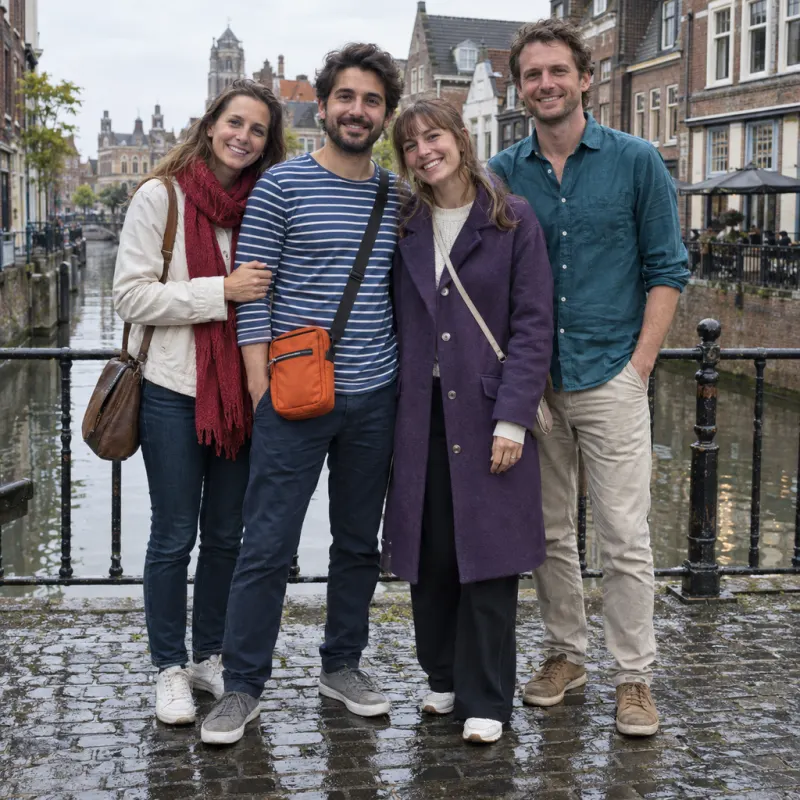
01 / People
Keep the people you choose
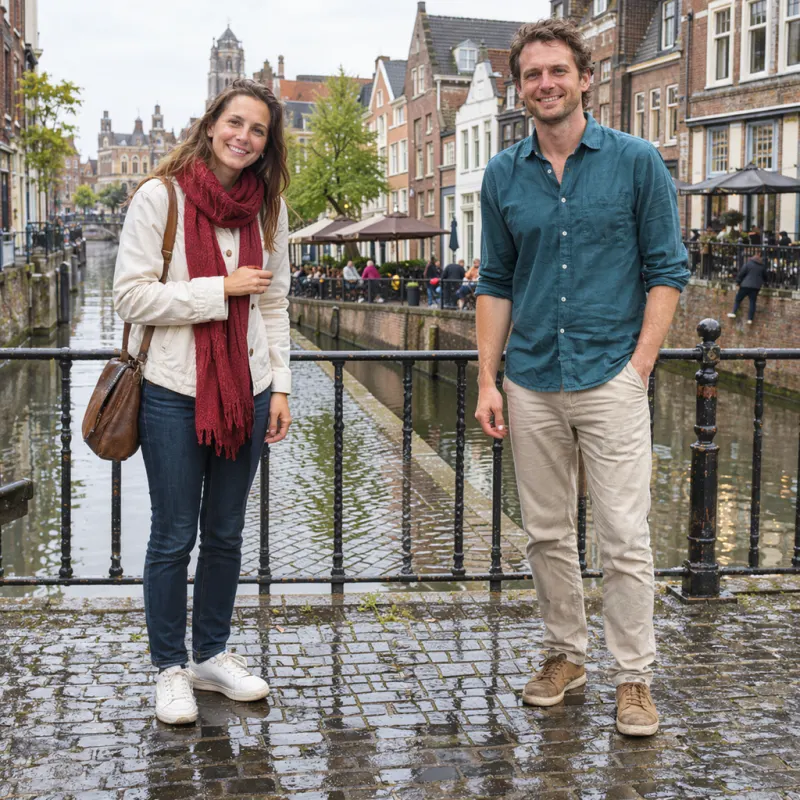
Two people removed from the middle of a close group, with the friends on either side retained. Compare their overlapping outlines and the rebuilt background.
Remove people from photoRemove unwanted objects, people, text and watermarks from photos online. Upload a photo and brush over what you want to erase.

or drop an image here
JPG, PNG or WebP · up to 10 MBA tourist in your view, clutter beside your product, or an old caption. Choose the cleanup your photo needs.
BeforeAfterTwo people removed from the middle of a close group, with the friends on either side retained. Compare their overlapping outlines and the rebuilt background.
Remove people from photo BeforeAfter
A reflective kettle and its thin cable removed from a patterned counter. The cup, green bottle and folded cloth remain beside the repaired tiles.
Remove object from photo BeforeAfter
Large outlined lettering removed across glass, brick and a door frame, while the cafe sign and table number remain.
Remove text from image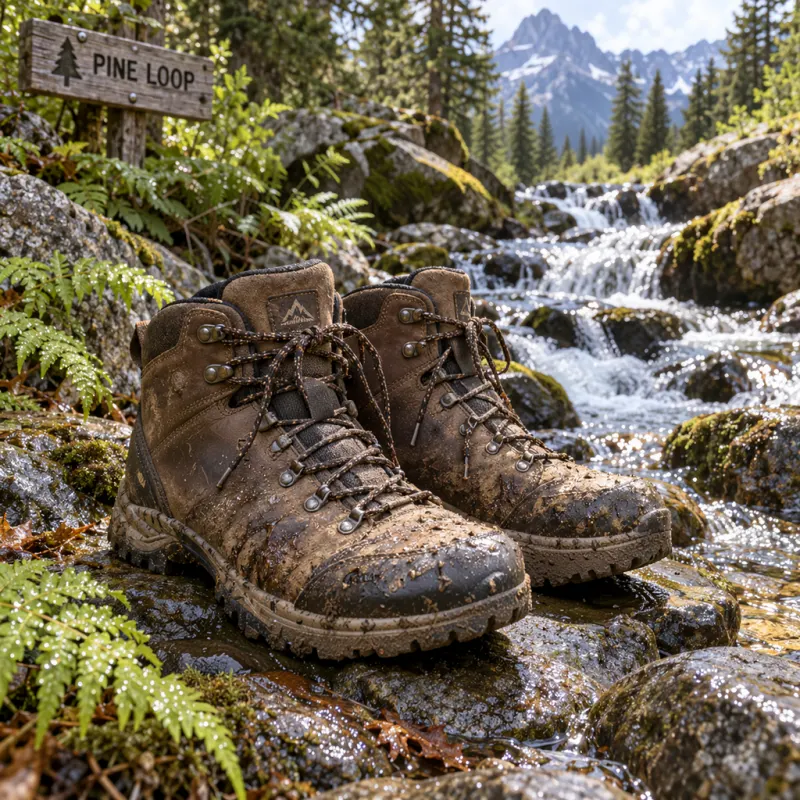 BeforeAfter
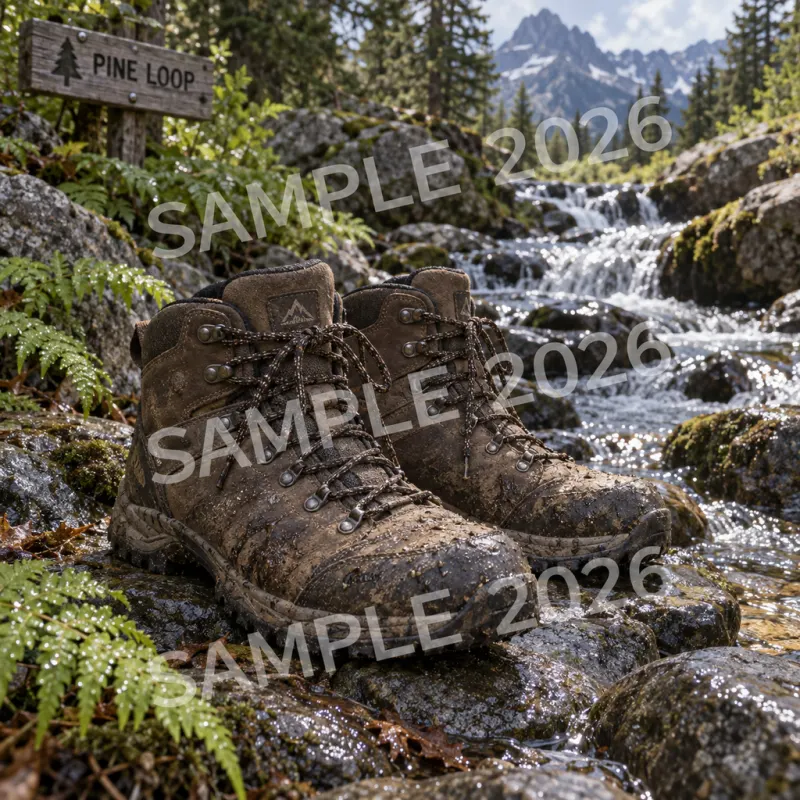
Three translucent diagonal watermarks removed across boots, foliage and running water. Compare the fine textures where each mark crossed the scene.
Remove watermark from photo BeforeAfter
Three stickers removed from a guitar, vase and chair. This edit also changed the chair fabric and guitar decoration—compare those details before keeping a result.
Remove emoji from photoActual Pro edits on AI-generated photos. Results vary, and surrounding details can change.
We processed these practice images with Standard mode. Compare the actual output, then download the input and brush selection to see exactly what was tested. The source photos are AI-generated; the results have not been retouched.
 BeforeAfter
Only the loose cable beside the bag was selected. The cable is cleared, while the bag stays in place. Look closely at the repaired rug: its repeating texture is softer than the surrounding weave.
 BeforeAfter
The selection covers the small “PARIS, 2026” line. The larger heading remains. The caption is removed, with some smoothing along the stone joint; inspect textured backgrounds before saving.
An AI photo eraser helps when one distraction gets in the way of an otherwise useful image. Start with a focused cleanup for the photo you already have.
Remove background people from a holiday photo while keeping the scenery in frame. Mark each passerby separately and check where they overlap railings, water or your main subject.
Clear loose packaging, cables or stray props from a product setup. For room photos, tidy temporary clutter while keeping permanent features and the item you are selling accurately represented.
Erase an outdated caption or decorative sticker from your own image before adding a new layout. Review the fill carefully when an overlay covers a face, lettering or product detail.
Choose a JPG, PNG or WebP up to 10 MB, or try a sample. Clear edges and visible background texture make accurate selections easier.
Cover the whole object and its shadow. Adjust the brush, zoom in, or undo stray strokes. Leave nearby details unselected as context for the AI.
Sign in, choose Standard, Precision, or Pro, and run the edit with credits. Compare the original and result, inspect the repaired area, and download your PNG.
Use the online object remover without installing software. Explore examples and prepare a selection before signing in, on your computer or phone.
An adjustable brush identifies what you want removed. Standard blends a local repair; Precision and Pro return a complete edited photo. Compare the full result to check that the people, objects and details you want to keep look right.
Standard uses 1 credit; Precision uses 2; Pro uses 2. Buy one-time credit packs without subscribing. Technical failures return credits; downloading an existing result costs nothing extra.
Compare before and after views to see what changed. Downloads have no added watermark. Check the dimensions and save a local copy for later.
An AI object remover replaces your brushed selection with texture generated from nearby pixels. It builds a plausible background; it cannot recover hidden original detail.
No installation is needed. Use a modern desktop or mobile browser to upload and brush your photo. Sign in when you are ready to process it.
Standard blends the repair into your selected area and its soft edge. Precision and Pro return a complete edited photo, so details elsewhere can change. Resizing can reduce detail. Compare the whole image and check important subjects, textures and dimensions before downloading.
Standard costs 1 credit and blends a repair into the selected area. Precision costs 2 credits. Pro costs 2 credits and uses an alternative editing model. Precision and Pro return a complete edited photo, so details outside the selection can change. No mode guarantees perfect faces, lettering or complex patterns.
Technical failures automatically refund the edit credits. Retrying a completed edit uses new credits. Downloading the same available result again costs nothing extra.
Examples and selection tools are free to explore. AI processing requires an account and credits. Check your account for trial credits and pricing for additional packs.
Upload a single-frame JPG, PNG or WebP up to 10 MB. Large images are resized to a maximum 1024 px longest edge. Downloads are PNG files.
Yes. Remove people from photos, erase text, or clean watermarks and stickers from images you own or may edit. Brush the full outline and shadow.
Use small selections that include the object and shadow. Leave surrounding texture visible. Large objects, overlapping subjects and repeating patterns need closer review before another edit.
Private working photos and results expire after 30 days. Delete finished edits sooner if needed. Processing uses an external AI service; its retention rules also apply.
Adjust distracting cast shadows while keeping the people and objects in the scene.
Gemini Video Watermark Remover · Free · No account · No credits
Upload it and brush over the part you want gone.
Clean up my photo